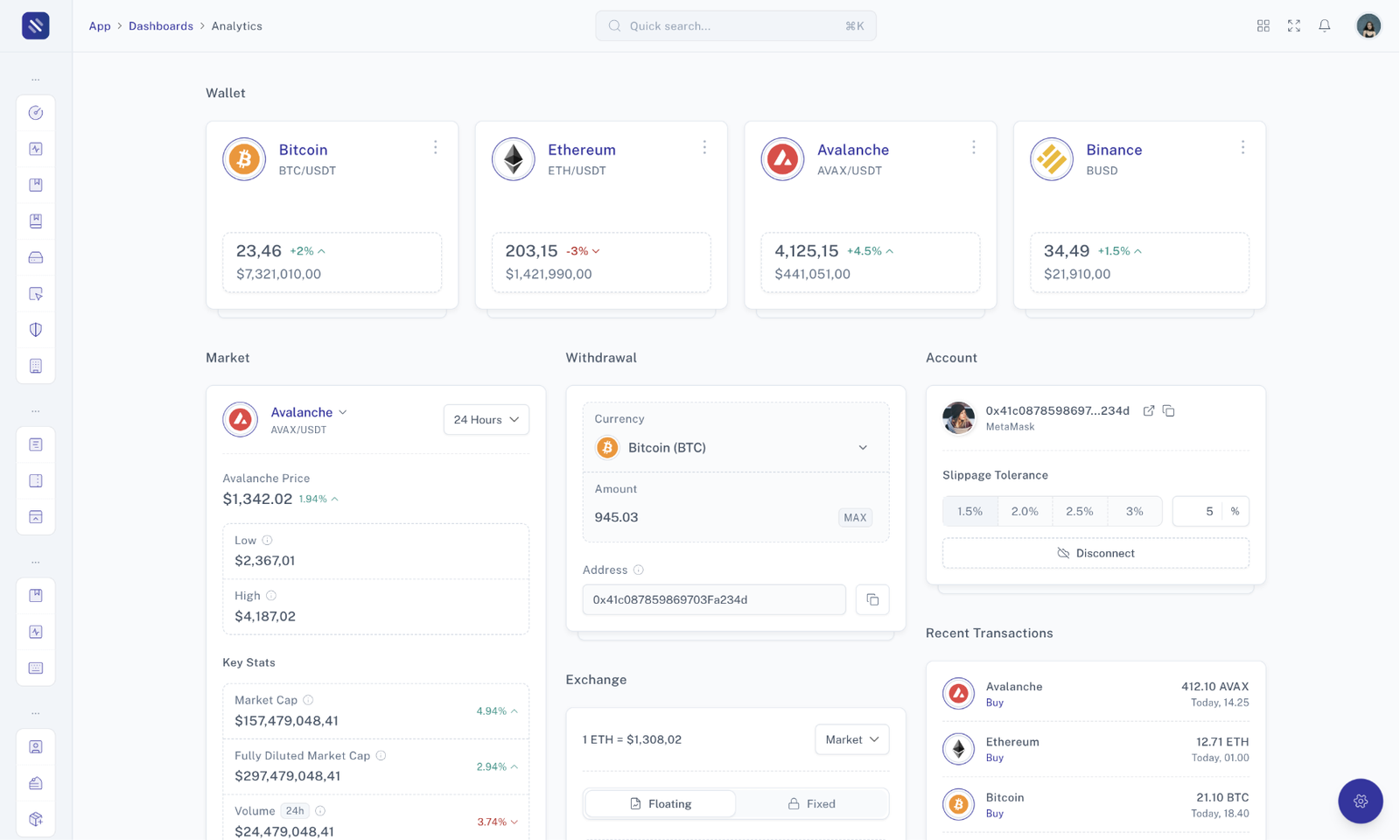
Tooltips are a helpful way to provide additional information or descriptions for elements on a web page. They typically appear when users hover over or interact with an element, offering context and clarification. This section explains how to implement basic tooltips in your web application.
HTMLOpenTagdiv class="text-center"HTMLCloseTag
HTMLOpenTagbutton
data-tw-merge
data-placement="top" title="This is awesome tooltip example!" class="transition duration-200 border shadow-sm inline-flex items-center justify-center py-2 px-3 rounded-md font-medium cursor-pointer focus:ring-4 focus:ring-primary focus:ring-opacity-20 focus-visible:outline-none dark:focus:ring-slate-700 dark:focus:ring-opacity-50 [&:hover:not(:disabled)]:bg-opacity-90 [&:hover:not(:disabled)]:border-opacity-90 [&:not(button)]:text-center disabled:opacity-70 disabled:cursor-not-allowed bg-primary border-primary text-white dark:border-primary tooltip cursor-pointer tooltip cursor-pointer"
HTMLCloseTagShow TooltipHTMLOpenTag/buttonHTMLCloseTag
HTMLOpenTag/divHTMLCloseTag
The "Basic Tooltip" section has demonstrated how to use tooltips to provide additional information and hints to users when they interact with elements on your web page. By following these guidelines and best practices, you can enhance user experience and provide valuable context without overwhelming your UI.
An "On Click Tooltip" is a variation of the traditional tooltip that appears when the user clicks on an element rather than hovering over it. This section explains how to implement tooltips that appear on click events in your web application.
HTMLOpenTagdiv class="text-center"HTMLCloseTag
HTMLOpenTagbutton
data-tw-merge
data-placement="top" title="This is awesome tooltip example!" data-trigger="click" class="transition duration-200 border shadow-sm inline-flex items-center justify-center py-2 px-3 rounded-md font-medium cursor-pointer focus:ring-4 focus:ring-primary focus:ring-opacity-20 focus-visible:outline-none dark:focus:ring-slate-700 dark:focus:ring-opacity-50 [&:hover:not(:disabled)]:bg-opacity-90 [&:hover:not(:disabled)]:border-opacity-90 [&:not(button)]:text-center disabled:opacity-70 disabled:cursor-not-allowed bg-primary border-primary text-white dark:border-primary tooltip cursor-pointer tooltip cursor-pointer"
HTMLCloseTagShow TooltipHTMLOpenTag/buttonHTMLCloseTag
HTMLOpenTag/divHTMLCloseTag
The "On Click Tooltip" section has demonstrated how to use tooltips that appear when the user clicks on elements in your web application. By following these guidelines and best practices, you can provide additional information and context to your users when they need it, improving the overall user experience.
A "Light Tooltip" is a type of tooltip that provides additional information when the user hovers over an element. These tooltips are designed with a clean and minimalistic appearance. This section explains how to implement Light Tooltips in your web application.
HTMLOpenTagdiv class="text-center"HTMLCloseTag
HTMLOpenTagbutton
data-tw-merge
data-placement="top" title="This is awesome tooltip example!" data-theme="light" class="transition duration-200 border shadow-sm inline-flex items-center justify-center py-2 px-3 rounded-md font-medium cursor-pointer focus:ring-4 focus:ring-primary focus:ring-opacity-20 focus-visible:outline-none dark:focus:ring-slate-700 dark:focus:ring-opacity-50 [&:hover:not(:disabled)]:bg-opacity-90 [&:hover:not(:disabled)]:border-opacity-90 [&:not(button)]:text-center disabled:opacity-70 disabled:cursor-not-allowed bg-primary border-primary text-white dark:border-primary tooltip cursor-pointer tooltip cursor-pointer"
HTMLCloseTagShow TooltipHTMLOpenTag/buttonHTMLCloseTag
HTMLOpenTag/divHTMLCloseTag
The "Light Tooltip" section has demonstrated how to use tooltips that provide additional information when the user hovers over elements in your web application. By following these guidelines and best practices, you can enhance user understanding and improve the overall user experience.
Custom Tooltip Content allows you to create tooltips with personalized and dynamic information. Instead of using static text, you can populate tooltips with dynamic content such as images, icons, or even React components. This section explains how to implement Custom Tooltip Content in your web application.

HTMLOpenTag!-- BEGIN: Custom Tooltip Toggle --HTMLCloseTag
HTMLOpenTagdiv class="text-center"HTMLCloseTag
HTMLOpenTagbutton
data-tw-merge
data-tooltip="custom-tooltip-content" class="transition duration-200 border shadow-sm inline-flex items-center justify-center py-2 px-3 rounded-md font-medium cursor-pointer focus:ring-4 focus:ring-primary focus:ring-opacity-20 focus-visible:outline-none dark:focus:ring-slate-700 dark:focus:ring-opacity-50 [&:hover:not(:disabled)]:bg-opacity-90 [&:hover:not(:disabled)]:border-opacity-90 [&:not(button)]:text-center disabled:opacity-70 disabled:cursor-not-allowed bg-primary border-primary text-white dark:border-primary"
HTMLCloseTagShow TooltipHTMLOpenTag/buttonHTMLCloseTag
HTMLOpenTag/divHTMLCloseTag
HTMLOpenTag!-- END: Custom Tooltip Toggle --HTMLCloseTag
HTMLOpenTag!-- BEGIN: Custom Tooltip Content --HTMLCloseTag
HTMLOpenTagdiv class="tooltip-content"HTMLCloseTag
HTMLOpenTagdiv
id="custom-tooltip-content"
class="tippy-content"
HTMLCloseTag
HTMLOpenTagdiv class="relative flex items-center py-1"HTMLCloseTag
HTMLOpenTagdiv class="image-fit h-12 w-12"HTMLCloseTag
HTMLOpenTagimg
class="rounded-full"
src="https://ebusiness.alitihadco.com/build/assets/product2-400x400-d7900320.jpg"
alt="Tailwise - Admin Dashboard Template"
HTMLCloseTag
HTMLOpenTag/divHTMLCloseTag
HTMLOpenTagdiv class="ml-4 mr-auto"HTMLCloseTag
HTMLOpenTagdiv
class="whitespace-nowrap font-medium leading-normal dark:text-slate-200"HTMLCloseTag
Tom Hanks
HTMLOpenTag/divHTMLCloseTag
HTMLOpenTagdiv
class="mt-0.5 whitespace-nowrap text-xs text-slate-500 dark:text-slate-400"HTMLCloseTag
TailwindCSS 3+ HTML Admin Template
HTMLOpenTag/divHTMLCloseTag
HTMLOpenTag/divHTMLCloseTagHTMLOpenTag/divHTMLCloseTag
HTMLOpenTag/divHTMLCloseTag
HTMLOpenTag!-- END: Custom Tooltip Content --HTMLCloseTag
The "Custom Tooltip Content" section has demonstrated how to create tooltips with personalized and dynamic content, allowing you to provide users with richer and context-specific guidance. By leveraging this feature, you can enhance the overall user experience and usability of your web application.
Chart tooltips are an essential component of data visualization, providing users with valuable insights when interacting with charts and graphs. This section explains how to implement and customize chart tooltips in your web application.
HTMLOpenTag!-- BEGIN: Custom Tooltip Toggle --HTMLCloseTag
HTMLOpenTagdiv class="text-center"HTMLCloseTag
HTMLOpenTagbutton
data-tw-merge
data-tooltip="chart-tooltip" class="transition duration-200 border shadow-sm inline-flex items-center justify-center py-2 px-3 rounded-md font-medium cursor-pointer focus:ring-4 focus:ring-primary focus:ring-opacity-20 focus-visible:outline-none dark:focus:ring-slate-700 dark:focus:ring-opacity-50 [&:hover:not(:disabled)]:bg-opacity-90 [&:hover:not(:disabled)]:border-opacity-90 [&:not(button)]:text-center disabled:opacity-70 disabled:cursor-not-allowed bg-primary border-primary text-white dark:border-primary"
HTMLCloseTagShow TooltipHTMLOpenTag/buttonHTMLCloseTag
HTMLOpenTag/divHTMLCloseTag
HTMLOpenTag!-- END: Custom Tooltip Toggle --HTMLCloseTag
HTMLOpenTag!-- BEGIN: Custom Tooltip Content --HTMLCloseTag
HTMLOpenTagdiv class="tooltip-content"HTMLCloseTag
HTMLOpenTagdiv
id="chart-tooltip"
class="tippy-content py-1 py-1"
HTMLCloseTag
HTMLOpenTagdiv class="font-medium dark:text-slate-200"HTMLCloseTag
Net Worth
HTMLOpenTag/divHTMLCloseTag
HTMLOpenTagdiv class="mt-2 flex items-center sm:mt-0"HTMLCloseTag
HTMLOpenTagdiv class="mr-2 flex w-20 dark:text-slate-400"HTMLCloseTag
USP:
HTMLOpenTagspan class="ml-auto font-medium text-success"HTMLCloseTag
+23%
HTMLOpenTag/spanHTMLCloseTag
HTMLOpenTag/divHTMLCloseTag
HTMLOpenTagdiv class="w-24 sm:w-32 lg:w-56"HTMLCloseTag
HTMLOpenTagdiv class="w-auto h-[30px]"HTMLCloseTag
HTMLOpenTagcanvas
class="chart simple-line-chart-1 simple-line-chart-1"
HTMLCloseTagHTMLOpenTag/canvasHTMLCloseTag
HTMLOpenTag/divHTMLCloseTag
HTMLOpenTag/divHTMLCloseTagHTMLOpenTag/divHTMLCloseTag
HTMLOpenTag/divHTMLCloseTag
HTMLOpenTag!-- END: Custom Tooltip Content --HTMLCloseTag
The "Chart Tooltip" section has demonstrated how to create and customize tooltips for your charts and data visualizations. By implementing well-designed chart tooltips, you can provide users with valuable insights, enhance their understanding of the data, and improve overall user engagement.
In this section, you will find detailed information about the available props, classes, and options that can be used with the component. Understanding these properties is essential for customizing and configuring the component to suit your specific requirements.
Below is a list of props that can be passed to the component:
| Prop | Type | Description |
|---|---|---|
| `getRef` | `(el: PopperElement | null) => void` | A function to get a reference to the PopperElement or null |
| `content` | `string` | The content to display in the tooltip |
| `as` | `string` | The HTML element type or React component to render |
| `options` | `Props` | Additional options for customizing the tooltip appearance and behavior |
| Prop | Type | Description |
|---|---|---|
| `to` | `string` | The target element selector for which the tooltip will be displayed (using the data-tooltip attribute) |
| `getRef` | `(el: HTMLElement | null) => HTMLElement` | A function to get a reference to the tooltip element or null |
| `options` | `Props` | Additional options for customizing the tooltip appearance and behavior |